Find helpful information about the game below. If you need to ask us a question use the "Contact us" link in the game's menu.
Search Results
Gameplay
How do I move around the artwork and choose colors?
You can zoom in and out of an artwork by holding two fingers on the screen and moving them apart or together, or using your mouse's scroll wheel on a computer. You can also use the + and - keys on your keyboard to zoom in and out.
To choose which color gem to fill in or change colors, just tap/click on any empty spot and the gems will switch to that color - the empty spots for that color will also be highlighted in the relevant color to make them easier to find. You can tap/click on these spots to fill them in with gems, or press and drag your finger or mouse pointer around (starting on a spot of the right color) to place lots of gems at once. You can drag over other empty spots, but only the spots for the color you have selected will fill with gems.
On mobile/tablet Once you’ve zoomed in you can move around the artwork by using one or two fingers to press and drag the screen around from any spot other than the empty spots of the currently selected color. If you’d prefer, there’s also the option to turn off '1 finger scrolling' in the game's settings. When this option is turned off, you just need to use two fingers to move.
On a computer Once you’ve zoomed in, you can move around the artwork by using the right click button on your mouse to drag the screen around. If you’d prefer, there’s also the option to turn on 'Left click to move' in the game's settings. When this option is turned on, you can also use your left mouse button to move by clicking and dragging the screen around from any spot other than the empty spots of the currently selected color.
▶
Can I stop the artwork from moving around when I'm filling it in?
Yes! If you find yourself accidentally moving the play area around when you’re trying to fill in gems whilst playing on your phone or tablet, you can turn off the ‘1 finger scrolling’ option in the game’s settings, or 'Left click to move' on a computer. Turning this off means that you can only move the play area around using two fingers or right click on your mouse, so you won’t accidentally move it when filling in a spot.
▶
How do I find the last few remaining gems?
When you have just a few gems left, you’ll see the 'find next' button pop up in the bottom left. You can tap/click on this button to move to the part of the artwork where some of the remaining gems are.
Also, at any point while playing a artwork, you can double tap, double click, or tap and hold on a color in the palette at the bottom to jump straight to the closest spot which needs a gem of that color.
▶
How do I hide or delete artworks from my collection?
You can delete artworks from your collection if you don't wish to replay them in the future. First, find the artwork you want to delete and click on it. Then click the three dots in the top right, where you'll find the option to delete the artwork.
▶
Can I play an artwork more than once?
You sure can! You can play an artwork as many times as you wish. To play an artwork again, just tap it in your collection and then choose the 'Reset artwork' option, in the three dots menu in the top right.
Note that you will only receive a reward of Coins the first time you complete each artwork.
▶
How do I get more artworks?
To purchase more artworks with your Diamond Painting Coins, visit the store in the game (from the game's menu or the bar along the bottom). Artworks are sold in sets, normally containing 5 or 10 artworks. Once you see a set you like, you can tap on it to preview the artworks in the set before purchasing. The preview will also show the number of gems in each artwork.
When viewing the store, you can filter the sets using the categories along to top to find the types of set you like most.
If you don’t have enough Coins to purchase a set, you can purchase extra Coins if you don’t want to wait until you’ve earned enough.
Sets that you have already purchased will no longer show in the store, so there's no need to worry about purchasing the same set twice.
▶
Can I make my own artworks?
You absolutely can! You can create one artwork per day for free - after this, you can make as many more as you’d like for 250 Coins each.
To create an artwork, go to the game's menu and tap the ‘Create your own’ option. You’ll then be able to choose an image from your device to upload and make into your very own diamond painting artwork.
▶
What is dithering?
Dithering softens the borders between different colors in an artwork. It can be particularly helpful for artworks made from photos with large sections of the same color, such as landscape artworks, as it helps to make the artwork look more natural and realistic by avoiding sharp edges.
When you make an artwork you can turn dithering off and on and choose the look that you prefer - try playing around with each artwork you make, as dithering will suit some artworks but not others depending on the picture you are using. When you purchase an artwork it will already have dithering turned on or off depending on the specific artwork.
▶
How is the reward determined for each artwork I complete?
The reward you receive for completing an artwork is set in advance for each artwork, based on its size. The time you take to complete an artwork won’t affect the Coins you receive.
You will receive more Coins for playing artworks you’ve purchased from the Diamond Painting Store (or our free artworks) than for playing artworks you’ve created yourself. You will only receive Coins the first time you complete an artwork.
▶
How do the free daily Coins work?
Every 24 hours, when you log in to the game, you can claim 25 free Coins - just head to the 'Home' section and press the 'Claim' button to get yours!
▶
Do I need to be connected to the internet to play?
No. Once you’ve installed Diamond Painting World and started playing you’ll be able to play offline next time. You can’t buy or make new artworks or receive Coin rewards in offline mode but you can play artworks that you already have in your collection.
You will need to go back online to get more artworks or to claim your rewards for completing artworks.
It may take a short while to download newly purchased artworks for offline play, so if you're taking a trip without internet we recommend checking this before you go by putting your device into airplane mode. If your artworks aren't downloaded yet, leave the game open for a while longer to give them time to do so.
▶
How do I save my progress?
Your artwork progress will automatically save regularly when you're filling in artworks, as well as when you leave the game.
▶
Technical Support
I’ve not received the Diamond Painting Coins that I purchased, what should I do?
Please check your internet connection, as the game needs a stable connection to deliver Coins. Then try turning your device off and on again and see if this makes the Coins appear.
If your Coins don't appear, please use the 'Contact Support team...' button in the game's menu to let us know what happened – this button will send us your player ID so we can locate your account. Make sure to tell us the exact amount of Coins you purchased. Please also attach a copy of your receipt or order confirmation for the purchase and we can then get the Coins added for you.
The receipt for your purchase will have been emailed to the account used to make the purchase. You can take a screenshot showing the order number and Coin amount and attach this when you contact us, or for Stripe purchases on a computer download the receipt from your order confirmation email and attach this. You can also wait for our first reply then forward the email straight to us.
If you can’t find your email receipt for a mobile purchase or it does not show the Coin amount, you can find your receipt in your account instead. See below for how to do this.
_______________
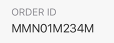
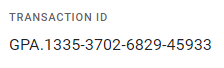
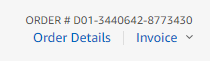
On iOS - Go to your purchase history and find the Diamond Painting World order. Take a screenshot that shows the Order ID and the amount of Coins purchased. On Android - Go to payments.google.com and sign in with your Google account. You should see a list of all your purchases under 'Activity' - click the one for Diamond Painting World and info will appear. Take a screenshot that shows the Transaction ID and the amount of Coins purchased. On Kindle - Go to your Amazon order history (US, UK) and find the Diamond Painting World order. Take a screenshot that shows the Order # and the amount of Coins purchased.
_______________
Please note that we’re available during UK office hours; we always endeavour to reply as soon as possible, and thank you for your patience.
▶
I’m having trouble loading the game, what should I do?
If you are playing on mobile/tablet
Please try re-starting the app – make sure to fully close it, not just minimize it. If this doesn’t help, please make sure you have the latest version of the game installed.
If you are playing on PC/laptop
There are several suggestions/troubleshooting options you can try when your game is not loading. Please try the following steps:
1. We recommend that you, first of all, try playing in another browser (E.g if you are using Microsoft Edge for example, then try Google Chrome, Mozilla Firefox, or Opera and vice versa.)
2. Now please visit this link for help in clarifying whether your browser is all up to date. If the browser is not up to date then simply click on the Update button to install the latest version.
3. We also recommend closing all extra tabs and other programs whilst you play as these can often negatively impact the browser performance.
4. Also make sure that you clear the browser cache regularly.
Still not working? Diamond Painting World or the service you log in with might be having server problems, so wait for a while and try again. If all else fails, let us know and we will try and help you further.
▶
I have lost my game progress, what should I do?
It’s likely that your progress has been stored safe and sound if you played linked with your Apple, Google or Amazon account. In most cases, just link your game back to the relevant account and you should see your progress again.
If you were playing as a Guest or have linked back to the relevant account but still can’t see your progress please contact us using the 'Contact Support team...' button in the game's menu and we will do our best to try and locate and restore your progress.
▶
The app on my iPhone/iPad is stuck on a message about rotating my device.
Diamond Painting World can be played across most types of devices and is available on the App Store, Google Play Store and Amazon. It can also be played on a PC or laptop device in your browser. If you play linked with an account (rather than as a guest), you can play with the same progress across multiple devices - let us know using the 'Contact Support team...' option if you need help with this!
Click on the buttons below to find the game on your app store:
Click here to play the game in your browser on our website.
▶
How can I keep up to date with the latest news and offers from Diamond Painting World?
We keep our players up to date with news, game updates and offers on our Diamond Painting World Community Facebook page which you can find here. Make sure you Like and Follow the page there to be the first to see our updates.
▶
Where can I find my player ID number?
You can find out your player ID by going to 'Settings' in the menu and scrolling down to the bottom. Here you’ll see your player ID; the settings also show what account (if any) you are linked with. We recommend you make a note of your player ID somewhere safe as this can help if you ever have any trouble with or questions about the game.
▶
How can I protect my account?
The last thing you want is to lose access to your artwork collection - whether you’re getting a new device, need to uninstall or reinstall, or accidentally drop your phone in the bath, make sure your account is protected and your progress backed up!
While you can play the game as a 'guest' it is strongly recommended that you link your account to either Apple, Google or Amazon (depending on the device you are using). Doing this will ensure that your progress can be easily restored if you change device or want to play across different devices (please note, some login types are only available on certain types of device).
If you haven't already done so, you can link your account and backup your progress by going to 'Settings' in the game's menu and finding the 'Account' section - here you can see which platform your account is currently linked to, or sign in if you are playing as a guest.
▶
How do I close the app on my mobile/tablet device?
On iPhone and iPad, bring up the recently used apps menu; on iPhone X or later or an iPad with iOS 12, from the Home screen, swipe up from the bottom of the screen and pause slightly in the middle of the screen. Press and hold Diamond Painting World then swipe it up to close the app; On an iPhone 8 or earlier, double-click the Home button. Swipe Diamond Painting World up to close the app.
On Android devices, access the recent apps menu – this is usually accessed by a button to the right of the home button. Then swipe away Diamond Painting World. If you are troubleshooting a problem and this doesn’t help, try force closing the app instead – go to your device's settings and choose Apps. Select Diamond Painting World and choose Force Stop.
On Kindle devices, go to your device's settings and choose Applications, then filter by Running Applications. Select Diamond Painting World and choose Force Stop.
▶
How do I get the latest updates for the mobile app?
Simply visit your device’s app store (where you downloaded the app) and go to the page for Diamond Painting World. If there are updates available you should see an ‘Update’ option.
▶
How do I make the game full screen on a computer?
Once you have the game open, you can use your browser's full screen mode to see the game in full screen.
This is normally accessed and exited by pressing the F11 key on your keyboard, and can also be accessed via a button in most browsers three dots/three lines menu, next to the Zoom settings.
▶
How often do you release new sets of artworks?
Artwork sets are released regularly, normally at least once per week, and some weeks there will be extra releases featuring seasonal artworks.
▶
What is the Game Club?
Game Club allows you to claim free currency in some of our other games in return for trying out Diamond Painting World! To take part, use the "Game Club rewards" button in Diamond Painting World. Here you can see the available tasks, and get a 4 letter code once you’ve completed a task. Copy this code, and then head to the relevant game and go to the Game Club section there, where you can enter the code to earn your reward.
Please note, you’ll need to be playing online to see the Game Club option in Diamond Painting World. The Game Club feature cannot be accessed from Apple devices, but you can still take part on other devices if your progress is connected to an account.
▶
Is the game available in other languages?
On a computer, the game is only available in English, however, most of the game is letter/number or picture based which allows players from all over the world to access and enjoy it; we have lots of players who speak different languages and still enjoy the game a lot! If you have any questions, please do let us know and we’ll do our best to help!
On a phone or tablet, the game is currently available in the following languages: English, French/français, German/Deutsch, Spanish/español, Japanese/日本語, Portuguese (Brazil)/português (Brasil), Korean/한국어. You can adjust the language for the game in the Menu under 'Settings'.
▶
What are Diamond Painting Coins? How do I get more?
Coins are used to purchase new sets of artwork in the game, as well as for creating your own artworks from images on your device (you can create one per day for free, or use Coins to create more).
You earn Coins when you complete artworks for the first time. You will also be able to claim a daily reward of 20 Coins for each day that you log in to the game - you can claim this at the top of the 'Home' section.
Coins can also be purchased in the game, all you need to do is press the '+' button next to your Coin total in the game. Purchasing Coins is completely safe, each purchase is processed securely by the relevant app store or by Stripe (depending on which device you are playing the game on). We do not have access to any of your payment details.
▶
Why do I have to pay for Coins? They should be free!
Diamond Painting World costs money to make and keep running. We have to pay developers, rent servers and pay for images - basically we need players to support us so we can keep the game running for everyone.
We know some players can’t or choose not to purchase Coins - it’s possible to play the game without buying anything, you just won't be able to get new artworks as often. We’re really thankful to the players who choose to support the game by purchasing Coins!
▶
How can I report a security vulnerability in the game?
How can I contact your support team to ask a question?
If you can’t find the answer to your question here in the FAQs and still need help, get in touch. You can send us a message using the ‘Contact Support team...’ button at the bottom of the game's menu.