Find helpful information about the game below. If you need to ask us a question use the "Contact us" link in the game's menu.
Search Results
Gameplay
How do I move around the puzzle?
On mobile/tablet
Once you’ve zoomed in you can move around the puzzle by using two fingers and dragging the screen around.
On a computer
Once you’ve zoomed in, you can move around by clicking and dragging the screen around with either your left or right mouse button.
▶
How do I find the last few remaining tiles?
When you have just a few tiles left, you’ll start to see the 'Tiles Remaining' counter pop up in the top left. This will show up when you are not twisting, and show how many tiles you have left to twist.
If you need help finding the last few tiles, you can click the 'Hint' button. This will highlight all the tiles left to twist. Once you start twisting again, the highlight will fade, so take a good look around – you might like to zoom out to see all the tiles at once.
You can use the hint button as many times as you like when playing, and it does not affect your reward. However, once you’ve used a hint the button must recharge for a short time before it can be used again. A bar will appear on the button and, once it has finished filling up you can use the button again.
▶
How do I change the background color of the play area?
Go to 'Options' > 'Game settings...' on a computer, or 'Menu' > 'Settings' on a mobile device to change the background color.
▶
How do I hide or delete puzzles from my collection?
You can hide all your completed puzzles by unchecking the box next to ‘Show completed’ when you are in your puzzle collection. This will hide all the puzzles you’ve already finished, but allow you to go back and do them again later if you want to, by re-checking the box.
You can also permanently delete puzzles from your collection by tapping ‘Organize…’ and selecting all the puzzles you wish to delete, then tapping the ‘Delete Selected’ button. Please note that deleting puzzles is permanent and cannot be undone.
▶
Can I play a puzzle more than once?
You sure can! You can play a puzzle as many times as you wish. To play a puzzle again, just open it from your collection and then choose 'Reset current puzzle' under 'File', or 'Reset puzzle' under 'Menu'. Make sure 'Show completed' is checked, at the bottom of your collection, in order to see puzzles you've already played.
Note that you will only receive a reward of Tile Twist Tokens the first time you complete each puzzle.
▶
How do I get more puzzles?
To purchase more puzzless with your Tile Twist Tokens, visit the puzzle store in the game. Puzzles are sold in packs, normally containing 25 puzzles. Once you see a pack you like, you can tap on it to preview the puzzles in the pack before purchasing. The preview will also show the number of tiles in each puzzle.
You can hide and favorite packs here too, just tap the three lines in the top right when previewing a pack. Hiding it will stop it showing in your store, unless you unhide it or view the ‘Hidden’ category.
When viewing the store, you can filter the packs that show using the categories (this is how you find your 'Favorites' too). The store can also be sorted by lots of options including ‘Newest first’ or ‘Favorites first’ so that you can quickly find the packs that you want.
If you don’t have enough Tokens to purchase a pack, you can purchase extra Tokens if you don’t want to wait until you’ve earned enough.
Packs that you have already purchased will no longer show in the store, so no need to worry about purchasing the same pack twice.
▶
Can I make my own puzzles?
You absolutely can! You can create one puzzle per day for free - after this, you can make as many more as you’d like for 120 Tokens each.
To create a puzzle, go to the game's menu and tap the 'Create puzzle' button; on a computer it's 'File' > 'Create puzzle from image...'. You’ll then be able to choose an image from your device to upload and make into your very own Tile Twist puzzle.
▶
How is the reward determined for each puzzle I complete?
The reward you receive for completing a puzzle is set in advance for each puzzle based on its complexity. The time you take to complete a puzzle won’t affect the Tokens you receive.
You will receive more Tokens for playing puzzles you’ve purchased from the Tile Twist store than for playing puzzles you’ve made yourself or received as a gift, and you will only receive Tokens the first time you complete a puzzle.
▶
How does the daily reward work?
Each day that you log in to the game you will automatically receive 10 free Tokens. You don’t have to do anything to get these except open the game!
If you have purchased Tokens via an in-app purchase any time within the last year you will automatically get 80 free Tokens a day instead of 10! This lasts a whole year from your most recent purchase, and you don’t have to do anything extra to claim the Tokens – just log in!
▶
Can I play the game with friends?
Yes! To manage your friends in the game, click the 'View / Add Friends' button under 'Menu' or 'Misc'.
Here you can get your unique friend code, which you can give to other players to allow them to add you. You can also enter other players' friend codes here, see and accept or reject friend requests, and see a full list of your friends.
If you'd like to remove a friend you can also do it in this window, by clicking the three dots next to the friend you wish to remove.
Once added, you and your game friends can send and receive puzzles between one another.
▶
How do gifts work in the game?
You can send and receive gifts (puzzles that you have created) in the game with your friends. Tap the 'Send to a friend' button in the menu, or 'Send Puzzle to friends...' under 'Misc' on a computer, then choose which puzzle you’d like to send and choose 'Next'. You can then select which friends to send the puzzle to.
You can accept one puzzle from your friends for free every day. After this, you can accept as many more as you like for 120 Tile Twist Tokens each.
Puzzles will stay in your gift box for up to a week. After this time, any unclaimed puzzles will be removed. This limit is necessary to avoid a build-up of too many puzzles on our servers and to avoid loading issues with the game
▶
Do I need to be connected to the internet to play?
No. Once you’ve installed Tile Twist World and started playing you’ll be able to play offline next time. You can’t buy or make new puzzles or receive Tile Twist Token rewards in offline mode but you can play puzzles that you already have in your collection.
You will need to go back online to get more puzzles or to claim your rewards for completing puzzles.
It may take a short while to download newly purchased puzzles for offline play, so if you're taking a trip without internet we recommend checking this before you go by putting your device into airplane mode. If your puzzles aren't downloaded yet, leave the game open for a while longer to give them time to do so.
▶
How do I save my progress?
Your puzzle progress should automatically save but this progress will normally only be available on the device where you made the progress. If you play across multiple devices you will want to use the 'Save position'/'Save progress' button available in the game's menu or under 'File'. You can also use this button if you're finding that your progress on a puzzle is lost when you go back to the game.
▶
Technical Support
I’ve not received the Tile Twist Tokens that I purchased, what should I do?
Please check your internet connection, as the game needs a stable connection to deliver Tokens. Then try turning your device off and on again and see if this makes the Tokens appear.
If your Tokens do not appear, please use the 'Contact us' button in the game's menu (on a computer it's 'Send error report' under 'Misc') to let us know what happened – this button will send us your player ID so we can locate your account. Make sure to tell us the exact amount of Tokens you purchased. Please also attach a copy of your receipt or order confirmation for the purchase and we can then get the Tokens added for you.
The receipt for your purchase will have been emailed to the account used to make the purchase. You can take a screenshot showing the order number and Token amount and attach this when you contact us, or for Stripe purchases on a computer download the receipt from your order confirmation email and attach this. You can also wait for our first reply then forward the email straight to us.
If you can’t find your email receipt for a mobile purchase or it does not show the Token amount, you can find your receipt in your account instead. See below for how to do this.
_______________
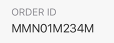
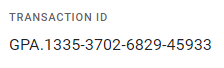
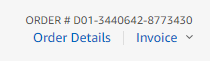
On iOS - Go to your purchase history and find the Tile Twist World order. Take a screenshot that shows the Order ID and the amount of Tokens purchased. On Android - Go to pay.google.com and sign in with your Google account. You should see a list of all your purchases under 'Activity' - click the one for Tile Twist World and info will appear. Take a screenshot that shows the Transaction ID and the amount of Tokens purchased. On Kindle - Go to your Amazon order history (US, UK) and find the Tile Twist World order. Take a screenshot that shows the Order # and the amount of Tokens purchased.
_______________
Please note that we’re available during UK office hours; we always endeavour to reply as soon as possible, and thank you for your patience.
▶
I’m having trouble loading the game, what should I do?
If you are playing on mobile/tablet
Please try re-starting the app – make sure to fully close it, not just minimize it. If this doesn’t help, please make sure you have the latest version of the game installed.
If you are playing on PC/laptop
There are several suggestions/troubleshooting options you can try when your game is not loading. Please try the following steps:
1. We recommend that you, first of all, try playing in another browser (E.g if you are using Microsoft Edge for example, then try Google Chrome, Mozilla Firefox, or Opera and vice versa.)
2. Now please visit this link for help in clarifying whether your browser is all up to date. If the browser is not up to date then simply click on the Update button to install the latest version.
3. We also recommend closing all extra tabs and other programs whilst you play as these can often negatively impact the browser performance.
4. Also make sure that you clear the browser cache regularly.
Still not working? Tile Twist World or the service you log in with might be having server problems, so wait for a while and try again. If all else fails, let us know and we will try and help you further.
▶
I have lost my game progress, what should I do?
It’s likely that your progress has been stored safe and sound if you played linked with your Facebook, Apple, Google Play Games, Amazon or another account. In most cases, just link your game back to the relevant account and you should see your progress again.
If you were playing as a Guest or have linked back to the relevant account but still can’t see your progress please Contact us and let us know the player ID number currently showing in your game and we will do our best to try and locate and restore your progress.
▶
I have an Apple Mac computer - how can I right click?
Click here for instructions on how to enable right click on a Mac.
▶
Misc
Where can I play Tile Twist World?
Tile Twist World can be played across most types of devices and is available on the App Store, Google Play Store and Amazon. It can also be played on a PC or laptop device in your browser. If you play linked with an account (rather than as a guest), you can play with the same progress across multiple devices - let us know using the 'Contact Us' option if you need help with this!
Click on the buttons below to find the game on your app store:
Click here to play the game in your browser on our website.
▶
How can I keep up to date with the latest news and offers from Tile Twist World?
We keep our players up to date with news, game updates and offers on our Tile Twist World Community Facebook page which you can find here. Make sure you Like and Follow the page there to be the first to see our updates.
▶
Where can I find my player ID number?
You can find out your player ID by opening the menu and going to 'View your profile' ('View my profile' under 'Misc' on a computer). We recommend you make a note of this somewhere safe as this can help if you ever have any trouble with or questions about the game.
▶
How do I change my name or profile picture in the game?
First, under 'Menu' or 'Misc' click 'View my profile'. Then click the green 'Edit Profile...' button. You can click the box with your current name in then use your keyboard to change it, and can use the blue 'Choose Image...' button to select a new image from your device to use as your profile picture.
Once you're done, just click ‘Save and close' to finish.
When choosing the name or picture for your in game profile make sure that it is kind, polite and doesn't contain any private information, as your fellow players will be able to see this. Names or images which we consider to be offensive will be changed at our discretion.
▶
How can I protect my account?
The last thing you want is to lose access to your puzzle collection - whether you’re getting a new device, need to uninstall or reinstall, or accidentally drop your phone in the bath, make sure your account is protected and your progress backed up!
While you can play the game as a 'guest' it is strongly recommended that you link your account to either Facebook or to Apple/Google/Amazon or another option (depending on the device you are using). Doing this will ensure that your progress can be easily restored if you change device or want to play across different devices.
If you haven't already done so, you can link your account and backup your progress by going to the game's settings and finding the 'account' section - here you can see which platform your account is currently linked to.
▶
How do I close the app on my mobile/tablet device?
On iPhone and iPad, bring up the recently used apps menu; on iPhone X or later or an iPad with iOS 12, from the Home screen, swipe up from the bottom of the screen and pause slightly in the middle of the screen. Press and hold Tile Twist World until a red – appears then swipe it up to close the app; On an iPhone 8 or earlier, double-click the Home button. Swipe Tile Twist World up to close the app.
On Android devices, access the recent apps menu – this is usually accessed by a button to the right of the home button. Then swipe away Tile Twist World. If you are troubleshooting a problem and this doesn’t help, try force closing the app instead – go to your device's settings and choose Apps. Select Tile Twist World and choose Force Stop.
On Kindle devices, go to your device's settings and choose Applications, then filter by Running Applications. Select Tile Twist World and choose Force Stop.
▶
How do I get the latest updates for the mobile app?
Simply visit your device’s app store (where you downloaded the app) and go to the page for Tile Twist World. If there are updates available you should see an ‘Update’ option.
▶
How often do you have sales?
We normally have a fortnightly sale, which starts every other Thursday and lasts for two days! Sale packs will appear near the top of the store and will show with the discount marked too so you can easily see which packs are on sale and what the discount amount is.
▶
What is the Game Club?
Game Club allows you to claim free Tokens in Tile Twist World in return for trying out some of our other games!
To take part, go to the Game Club icon in Tile Twist World. You’ll see three options:
Play & Earn shows you the games you can play to earn Tokens in Tile Twist World, as well as the tasks you need to do to get your Tokens. There are also instructions for how to claim and links to the other games.
Get Code lets you get a 4 letter code once you’ve completed a task. You should click this button in the other game you’ve played to get Tile Twist World Tokens. You can also tap it in Tile Twist World to get codes for rewards in other games.
Redeem Code lets you enter your 4 letter code from another game to get your Tile Twist World Tokens!
Please note, you’ll need to be playing online to see the Game Club icon in Tile Twist World. The Game Club feature cannot be accessed from Apple devices, but you can still take part on other devices if your progress is connected to an account.
▶
Is the game available in other languages?
The game is only available in English, however, most of the game is picture based which allows players from all over the world to access and enjoy it; we have lots of players who speak different languages and still enjoy the game a lot!
If you have any questions, please do let us know and we’ll do our best to help!
▶
What are Tokens? How do I get more?
Tokens are used to purchase new packs of puzzles in the game, as well as for creating and receiving extra puzzles.
You earn Tokens when you complete a puzzle for the first time. You will also receive a Daily Reward of Tokens for each day that you log in to the game.
Tokens can also be purchased in the game, all you need to do is press the 'Add' button next to your Token total in the game's menu. Purchasing Tokens is completely safe; each purchase is processed securely by the relevant app store or by Stripe (depending on which device you are playing the game on). We do not have access to any of your payment details.
▶
Why do I have to pay for Tokens? They should be free!
Tile Twist World costs money to make and keep running. We have to pay developers, rent servers and pay for images - basically we need players to support us so we can keep the game running for everyone.
We know some players can’t or choose not to purchase Tokens - it’s possible to play the game without buying anything, you just won't be able to get new puzzles as often. We’re really thankful to the players who choose to support the game by purchasing Tokens!
▶
Can I buy a gift of Tokens for a friend?
This is not currently an option in the game.
▶
I play on a computer and my currency isn't listed.
There are a limited number of currencies available to choose from for the prices displayed in the game. However, if your currency is not listed please select a different one and then choose the amount of Tokens you'd like to purchase.
Once you've done this, a purchase window from Stripe/Link will appear and this should show the price in your correct local currency based on your location. You'll be able to see the cost and confirm that the currency is correct here, before deciding whether to enter your payment information and go ahead with the purchase.
▶
How can I report a security vulnerability in the game?
How can I contact your support team to ask a question?
If you can’t find the answer to your question here in the FAQs and still need help, get in touch. You can send us a message using the ‘Contact us’ button at the bottom of the game's menu ('Send error report' under 'Misc' on the computer version of the game).